How to Prepare Print-Ready Files: A Step-by-Step Guide
Learn how to prepare print-ready files for commercial printing. This step-by-step guide covers resolution, color mode, bleed, fonts, file formats, and a preflight checklist to avoid costly reprints.
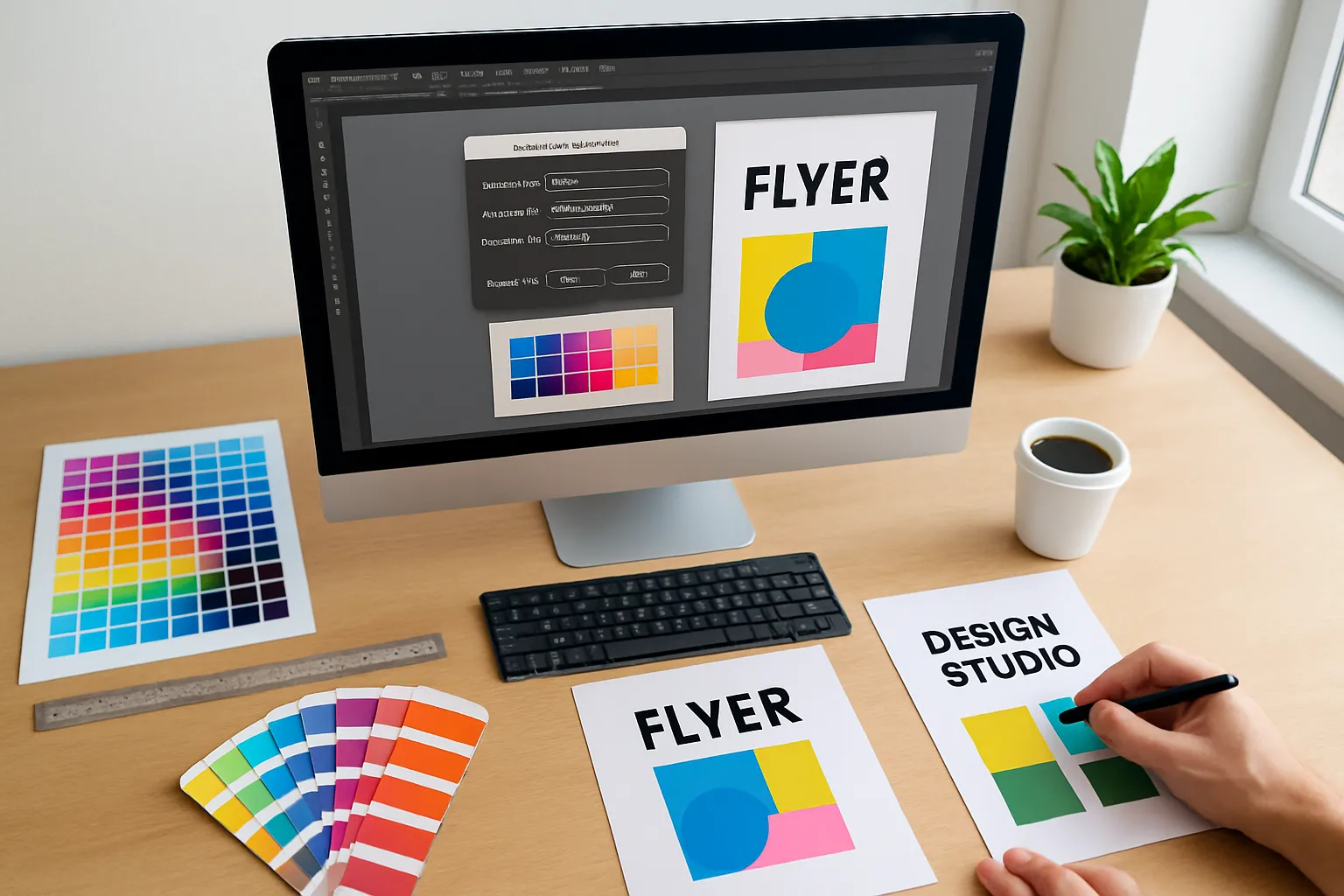
Submitting files that aren't print-ready is the #1 cause of project delays and unexpected costs at commercial print shops. The good news: preparing proper files isn't complicated once you know the rules.
The Bottom Line
A print-ready file is a high-resolution PDF in CMYK color mode with proper bleed, embedded fonts, and images at 300 DPI or higher. Follow the seven steps below and your files will sail through prepress every time.
Step 1: Set Up Your Document at the Correct Size
Before you design anything, make sure your document dimensions match the final trim size — the finished size after cutting. Common sizes include:
| Product | Trim Size (inches) | Trim Size (mm) |
|---|---|---|
| Business card | 3.5 × 2 | 89 × 51 |
| Postcard | 6 × 4 | 152 × 102 |
| Letter flyer | 8.5 × 11 | 216 × 279 |
| Tabloid poster | 11 × 17 | 279 × 432 |
| Tri-fold brochure (flat) | 11 × 8.5 | 279 × 216 |
Pro tip: Don't scale a letter-size design to fit a postcard — it won't look right. Always start with the correct dimensions from the beginning.
Step 2: Add Bleed (0.125″ on All Sides)
Bleed is the extra area beyond the trim line where your design extends. When thousands of sheets are cut at once, the blade can shift by a tiny amount. Without bleed, you'll see thin white edges on your finished piece.
Bleed Area
0.125″
Extend backgrounds and images past the trim edge
Trim Line
Final cut
Where the blade cuts your printed piece
Safety Zone
0.125″ in
Keep all text and logos inside this margin
The standard bleed for commercial printing is 0.125 inches (3 mm) on all four sides. Some large-format or packaging projects may require 0.25″ or more — always confirm with your printer.
Step 3: Use CMYK Color Mode (Not RGB)
Screens display color using RGB (red, green, blue) — light-based color. Printing presses use CMYK (cyan, magenta, yellow, black) — ink-based color. If you submit an RGB file, the printer must convert it, and some colors will shift — especially bright blues, greens, and oranges.
| Color Mode | Used For | Gamut |
|---|---|---|
| RGB | Screens, web, social media | Wider (~16.7 million colors) |
| CMYK | Offset & digital printing | Narrower (subset of RGB) |
| Pantone (PMS) | Spot color printing | Precise brand-match colors |
Pro tip: Convert to CMYK early in your design process — not at the end. This way you can adjust colors before they're locked in. In Adobe Illustrator or InDesign, go to File → Document Color Mode → CMYK.
Step 4: Set Image Resolution to 300 DPI
Images that look crisp on screen (72–96 DPI) will print blurry. For commercial printing, every image in your design must be at least 300 DPI at its actual print size.
Check resolution: In Photoshop, go to Image → Image Size. Ensure resolution is 300 pixels/inch and dimensions match or exceed the print size.
Don't upscale: Enlarging a 72 DPI image to 300 DPI doesn't add real detail — it just makes a blurry image bigger. Start with a high-res source.
Large format exception: For banners and posters viewed from a distance (3+ feet), 150 DPI is usually sufficient.
Step 5: Embed or Outline All Fonts
If your printer doesn't have the exact font you used, text can reflow, substitute, or break entirely. You have two options:
Option A: Embed Fonts
When exporting to PDF, check "Embed all fonts" in your export settings. This packages the font data inside the PDF so any system can render it correctly.
Option B: Convert to Outlines
In Illustrator: Select All → Type → Create Outlines. This converts text to vector shapes. Note: outlined text can no longer be edited, so save a working copy first.
Pro tip: Embedding fonts is almost always the better choice for multi-page documents like booklets and catalogs. Outlining is best for single-page designs like business cards and flyers.
Step 6: Export as a Press-Ready PDF
The universal standard for commercial printing is PDF/X — a subset of PDF specifically designed for reliable print output. The two most common versions:
| Format | Best For | Supports |
|---|---|---|
| PDF/X-1a | Standard CMYK printing | CMYK + spot colors, embedded fonts, no transparency |
| PDF/X-4 | Modern workflows | CMYK + spot + RGB, transparency, layers, ICC profiles |
In Adobe InDesign: File → Export → Adobe PDF (Print), then select [PDF/X-1a:2001] or [PDF/X-4:2008] from the presets. Check "Include bleed" under the Marks and Bleeds tab.
Step 7: Run a Preflight Check
Before sending your file, run a preflight check — an automated scan that catches common issues before they reach the press.
Preflight Checklist
- ✓Document size matches final trim size
- ✓Bleed is set to 0.125″ (3 mm) on all sides
- ✓All images are 300 DPI at print size
- ✓Color mode is CMYK (no RGB images)
- ✓All fonts are embedded or outlined
- ✓Text and logos are inside the safety zone (0.125″ from trim)
- ✓File is exported as PDF/X-1a or PDF/X-4
- ✓No spot colors unless intentionally specified
- ✓Total ink coverage does not exceed 300% (prevents smearing)
Adobe InDesign has a built-in Preflight panel (Window → Output → Preflight). Adobe Acrobat Pro also offers robust preflight under Print Production → Preflight. Free alternatives like PDF24 can check basic issues.
Common Mistakes That Delay Print Jobs
| Mistake | What Happens | How to Avoid |
|---|---|---|
| No bleed | White edges on finished piece | Add 0.125″ bleed and extend backgrounds |
| Low-res images | Blurry or pixelated prints | Use 300 DPI images at actual print size |
| RGB color mode | Colors shift — especially blues and greens | Convert to CMYK before designing |
| Missing fonts | Text reflows or substitutes | Embed fonts or convert to outlines |
| Text too close to edge | Important content gets cut off | Keep 0.125″ safety margin |
| Sending .JPG or .PNG | No bleed, wrong color, compressed quality | Always export as PDF/X |
Software-Specific Quick Settings
Adobe Illustrator
New doc → set Units to Inches, enter trim size, add 0.125″ bleed. Color mode: CMYK. Export: Save As → PDF → PDF/X-1a with "Use Document Bleed Settings" checked.
Adobe InDesign
New doc → Intent: Print, set page size, check "Bleed" and set all to 0.125″. Export: File → Export → Adobe PDF (Print) → PDF/X-1a or X-4.
Canva
Use "Custom size" with exact dimensions. In Download, select PDF Print, check "Crop marks and bleed." Note: Canva uses RGB internally — ask your printer if they accept Canva exports or if conversion is needed.
Need Help With Your Files?
Not everyone is a design expert — and that's okay. At First Global Graphics, our prepress team reviews every file before it goes to press. If we spot issues, we'll let you know and can often fix minor problems at no extra charge.
Have a project ready to print? Call us at (626) 960-4081 or request a quote. Send us your files and we'll run a free preflight check before production begins.
Frequently Asked Questions
What is a print-ready file?+
A print-ready file is a document that meets all technical specifications for commercial printing — correct dimensions, CMYK color mode, 300 DPI images, proper bleed (0.125 inches), embedded fonts, and exported as a PDF/X format. It requires no additional modifications before going to press.
What resolution should images be for printing?+
Images should be at least 300 DPI (dots per inch) at the actual print size for standard commercial printing. For large-format items like banners viewed from a distance, 150 DPI is usually acceptable. Never upscale low-resolution images — start with high-res source files.
Why do my printed colors look different from my screen?+
Screens use RGB (light-based) color while printers use CMYK (ink-based) color. RGB has a wider color range, so some vibrant screen colors — especially bright blues, greens, and oranges — cannot be exactly reproduced in CMYK. Converting to CMYK early in the design process helps you adjust colors before printing.
What is bleed and why is it important?+
Bleed is the extra 0.125 inches (3 mm) of design that extends beyond the trim line on all sides. When printed sheets are cut, the blade can shift slightly. Bleed ensures there are no unintended white edges on your finished piece. Any background color, image, or design element that touches the edge must extend into the bleed area.
What file format should I send to my printer?+
The industry standard is PDF/X — specifically PDF/X-1a for standard CMYK jobs or PDF/X-4 for modern workflows with transparency. Avoid sending JPG, PNG, or Word documents for professional printing, as they lack bleed settings, proper color management, and font embedding.
Can I use Canva to create print-ready files?+
Canva can produce acceptable files for basic projects. Use 'Custom size' for exact dimensions and select 'PDF Print' with 'Crop marks and bleed' enabled when downloading. However, Canva works in RGB internally, so colors may shift. For color-critical projects, Adobe InDesign or Illustrator is recommended.
Ready to start your print project?
Get a free quote or call us at (626) 960-4081