What Is Bleed in Printing? (And Why Ignoring It Ruins Your Job)
Learn what bleed means in printing, why it matters, how much to add, and what happens when you skip it. A practical guide for anyone sending files to a commercial printer.
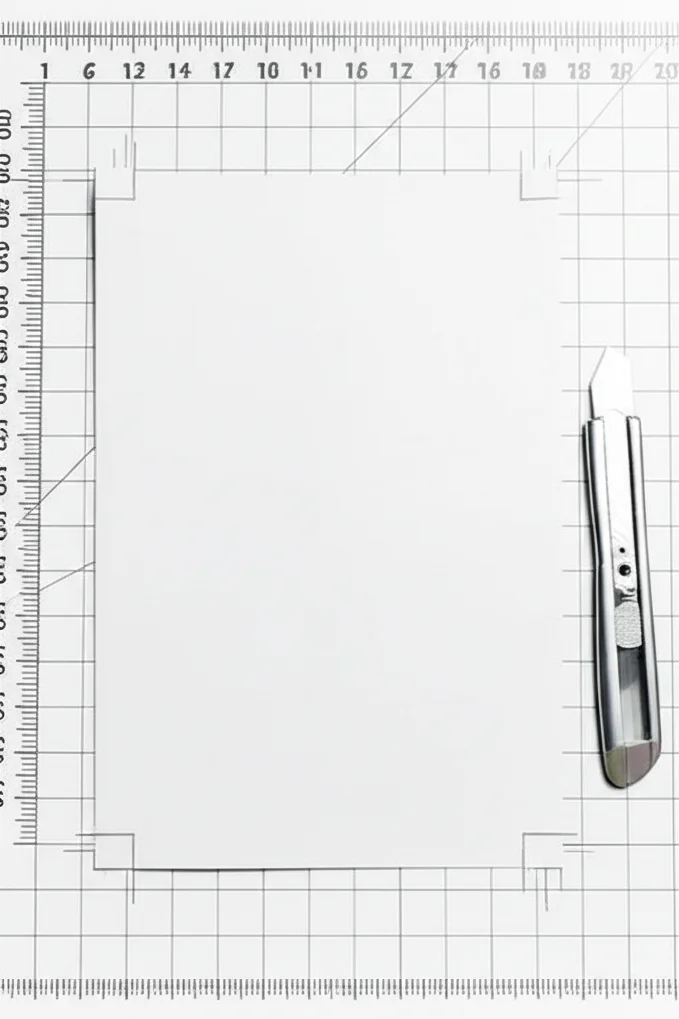
You're about to send your design to the printer. Everything looks perfect on screen — clean edges, bold colors running right to the border. Then you get an email: "Your file has no bleed. We can't print this as-is."
If that sounds familiar, you're not alone. Bleed is one of the most common reasons print jobs get delayed, sent back for revisions, or — worst case — printed with ugly white edges that weren't supposed to be there.
The Short Answer
Bleed is the extra area (usually 0.125″ / 3mm) where your design extends beyond the final trim size. It exists so that when the paper is cut, there's no white edge — even if the cutting blade shifts slightly. Every commercial print job with color or images touching the edge needs bleed.
Now let's break down exactly what bleed is, why printers need it, how to set it up correctly, and what goes wrong when you don't.
Why Bleed Exists: The Physics of Cutting Paper
Printing doesn't happen on individual sheets cut to your exact finished size. Instead, your design is printed on a larger sheet — sometimes with multiple copies ganged together — and then trimmed down to the final dimensions.
Here's the problem: cutting machines aren't perfect. When a guillotine cutter slices through a stack of 500 sheets, the blade can shift by a fraction of a millimeter. On a single sheet, the cut might land a hair to the left. On the next, a hair to the right.
If your design stops exactly at the intended trim line, even a tiny shift means you'll see a sliver of white paper along one edge. On a business card, that looks unprofessional. On a 10,000-piece brochure run, it looks like a disaster.
Bleed solves this by giving the cutter a margin of error. Your design extends past the trim line, so no matter where the blade lands (within tolerance), the color goes all the way to the edge.
Bleed, Trim, and Safe Zone: The Three Lines You Need to Know
Every print-ready file has three invisible boundaries. Understanding all three is the key to files that print perfectly every time:
Bleed Line (outermost)
The outer boundary of your document. Extend all backgrounds, images, and design elements that touch the edge out to this line. Standard bleed: 0.125″ (3mm) on all four sides.
Trim Line (middle)
Where the cutter is supposed to cut. This is your final piece size — for example, 3.5″ × 2″ for a standard business card or 8.5″ × 11″ for a letter-size flyer.
Safe Zone / Margin (innermost)
Keep all critical content — text, logos, QR codes — inside this boundary. Typically 0.125″ to 0.25″ inside the trim line. Anything closer to the edge risks being cut off or looking cramped.
Think of it like a sandwich: bleed on the outside, safe zone on the inside, trim line in the middle. Your design fills bleed-to-bleed. Your important content stays inside the safe zone. The trim line is where the knife falls.
How Much Bleed Do You Need?
For most commercial printing in the US, the standard is:
Standard bleed measurements
- Business cards, flyers, brochures, postcards: 0.125″ (3mm) on all sides
- Booklets and catalogs: 0.125″ on outside edges; spine may need more depending on binding
- Large format (banners, posters): 0.25″ to 0.5″ depending on the printer
- Packaging and die-cut pieces: 0.125″ minimum; follow the die-line template exactly
When in doubt, ask your printer. Different shops and different equipment may have specific requirements. But 0.125″ is the safest default for standard commercial print jobs.
What Happens When You Don't Include Bleed
Here's what your printer sees when you send a file without bleed — and the options are all bad:
- Option 1: Print it anyway. The result: thin white strips along one or more edges where the cut didn't land perfectly. Your full-color brochure now looks like a home inkjet printout. Not great for your brand.
- Option 2: Scale your design down. The printer shrinks your artwork so there's a white border on all sides (essentially adding a frame). Your 8.5″ × 11″ flyer now has its content compressed into a smaller area with a visible margin. Layout proportions change. It looks "off."
- Option 3: Send it back. This is the most common response from a good printer. They'll email you, explain the problem, and ask for a corrected file. You're now delayed by however long it takes you to fix it and resend.
None of these are good outcomes. And all of them are completely avoidable.
How to Set Up Bleed in Common Design Software
Setting up bleed takes about 10 seconds in any professional design tool. Here's how:
Adobe InDesign
When creating a new document: File → New → Document. At the bottom of the dialog, expand "Bleed and Slug" and enter 0.125 in for all four sides. When exporting to PDF: File → Export → Adobe PDF (Print). Under "Marks and Bleeds," check "Use Document Bleed Settings."
Adobe Illustrator
File → New. Click the "Bleed" dropdown and enter 0.125 in on all sides. When saving as PDF: File → Save As → PDF. In the dialog, go to "Marks and Bleeds" and check "Use Document Bleed Settings."
Adobe Photoshop
Photoshop doesn't have a built-in bleed setting. Instead, create your canvas 0.25″ wider and 0.25″ taller than your final size (adding 0.125″ to each dimension). Place guides at the trim line manually. Example: for a 3.5″ × 2″ business card, create a 3.75″ × 2.25″ canvas at 300 DPI.
Canva
If you're using Canva Pro: when downloading, select "PDF Print" and check the "Crop marks and bleed" box. Canva adds bleed automatically. If you're on the free plan, you'll need to manually extend your design and add extra canvas space.
Microsoft Word / PowerPoint
These programs were not designed for print production, and they don't support bleed natively. If you must use them, add extra page size manually, but be aware that color accuracy and resolution will also be limited. For professional print jobs, use InDesign, Illustrator, or at minimum Canva Pro.
Common Bleed Mistakes (and How to Avoid Them)
Even designers who know about bleed sometimes make these errors:
❌ Extending text into the bleed area
Bleed is for backgrounds and images only. Text and logos should stay inside the safe zone. If text extends into the bleed, it may get partially cut off.
❌ Using a thin border as a design element
A decorative border exactly at the trim line will look uneven after cutting — thicker on one side, thinner on another. Either make the border thick enough to absorb variation (0.25″+) or skip it entirely.
❌ Adding bleed on only some sides
If your background color touches the edge on all four sides, you need bleed on all four sides. Partial bleed is a common preflight error.
❌ Forgetting bleed on the inside panels of a folded piece
A tri-fold brochure needs bleed on the outer edges and may need allowance at the fold lines depending on the printer's requirements. Always ask for a template.
Does Every Print Job Need Bleed?
No — but most do. Here's the simple rule:
- Needs bleed: Any design where color, images, or graphics touch the edge of the finished piece. This includes most business cards, brochures, flyers, postcards, booklet covers, and posters.
- Doesn't need bleed: Documents with a white border all around — like a text-heavy report, a black-and-white manuscript, or an invoice. If nothing touches the edge, there's nothing to bleed.
When in doubt, add bleed anyway. It takes seconds to set up and will never cause problems — but not having it when you need it will delay your job every time.
Get Your Files Right the First Time — Or Let Us Help
At First Global Graphics in Irwindale, CA, we check every file before it hits the press. If your bleed is missing or incorrect, our prepress team will flag it and tell you exactly what to fix — before it costs you time or money.
Need help setting up your files? We offer free prepress file checks and can provide templates for common formats. Call us at (626) 960-4081 or request a quote online — we'll make sure your job prints clean.
Frequently Asked Questions
What is bleed in printing?+
Bleed is the area of your design that extends beyond the final trim size, typically 0.125 inches (3mm) on all sides. It ensures that when the paper is cut, there are no white edges — even if the cutting blade shifts slightly during trimming.
How much bleed should I add to my print file?+
The standard bleed for most commercial print jobs (business cards, brochures, flyers, postcards) is 0.125 inches (3mm) on all four sides. Large format printing may require 0.25 to 0.5 inches. Always confirm with your printer if you're unsure.
What happens if I don't include bleed in my print file?+
Without bleed, you'll likely see thin white strips along the edges of your printed piece where the cutting blade didn't land perfectly. Your printer may also scale your design down, adding an unintended white border, or send the file back for correction — delaying your project.
What is the difference between bleed, trim, and safe zone?+
The trim line is where the paper will be cut to reach the final size. The bleed line is 0.125 inches outside the trim — extend backgrounds and images to this line. The safe zone is 0.125 to 0.25 inches inside the trim — keep all critical content like text and logos within this area.
How do I add bleed in Adobe InDesign?+
In InDesign, go to File → New → Document, expand the Bleed and Slug section, and enter 0.125 inches for all four sides. When exporting to PDF, go to Marks and Bleeds and check Use Document Bleed Settings.
Does Canva support bleed for printing?+
Yes, Canva Pro supports bleed. When downloading your design, select PDF Print and check the Crop marks and bleed option. Canva will automatically add the bleed area. The free plan requires manual adjustments.
Does every print job need bleed?+
No. Bleed is only needed when your design has color, images, or graphics that touch the edge of the finished piece. Documents with a white border all around — like text reports or invoices — don't need bleed.
Does First Global Graphics check files for bleed before printing?+
Yes. First Global Graphics in Irwindale, CA checks every file during prepress. If bleed is missing or incorrect, we'll flag it and tell you exactly what to fix before printing. We also offer free prepress file checks and templates. Call (626) 960-4081 for details.
Ready to start your print project?
Get a free quote or call us at (626) 960-4081